Connecting Python and Postgres Using Docker Compose

Hello, I'm Ganesh. I'm working on FreeDevTools online, currently building one place for all dev tools, cheat codes, and TLDRs — a free, open-source hub where developers can quickly find and use tools without any hassle of searching all over the internet.
Ever had a Python script that needed a database, but you didn't want to go through the hassle of installing and configuring Postgres on your local machine? This is a perfect job for Docker, and more specifically, Docker Compose.
In this post, we'll walk through the entire process of setting up a multi-container Docker environment. We'll build two services:
A Postgres database server.
A Python Flask web app that connects to the database.
We'll not only build it, but we'll also learn the "magic" of Docker networking, how to make services wait for each other, and how to debug when things (inevitably) go wrong.
The Four Files We Need
Our entire project will live in one folder and consist of just four files:
docker-compose.yml: The "conductor" that tells Docker Compose how to build and run our services.Dockerfile: The "recipe" for building our custom Python application image.app.py: Our actual Python Flask application script.requirements.txt: The list of Python libraries our app needs.
Let's build them one by one.
The Application
First, let's define our Python application.
The Dependencies: requirements.txt
Our app needs two libraries: Flask to be a web server and psycopg2 to talk to Postgres.
psycopg2-binary
flask
The App: app.py
This will be a simple Flask app. When you visit the homepage (/), it will try to connect to our Postgres database. It will return a success message if it works or an error if it doesn't.
Notice how we get the database details (like the host and password) from environment variables. This is a best practice and crucial for Docker.
from flask import Flask
import psycopg2
import os

app = Flask(__name__)

# Get database connection details from environment variables
db_host = os.environ.get('DB_HOST')
db_name = os.environ.get('DB_NAME')
db_user = os.environ.get('DB_USER')
db_pass = os.environ.get('DB_PASSWORD')

@app.route('/')
def check_db():
    try:
        # Try to connect to the database
        conn = psycopg2.connect(
            host=db_host,
            dbname=db_name,
            user=db_user,
            password=db_pass
        )
        conn.close()
        # If connection is successful
        return "Success! Connected to the PostgreSQL database."
    except psycopg2.OperationalError as e:
        # If connection fails
        return f"Connection failed: {e}", 500

if __name__ == '__main__':
    # 'host=0.0.0.0' makes it accessible outside the container
    app.run(host='0.0.0.0', port=5000)
The Recipe: Dockerfile
Now, how do we package this app into a Docker image? We use a Dockerfile.
# 1. Start from the Python 3.10-slim base image
FROM python:3.10-slim

# 2. Set the working directory inside the container
WORKDIR /app

# 3. Copy our project files (everything in the folder) into the /app directory
COPY . .

# 4. Install our Python libraries
RUN pip install -r requirements.txt

# 5. Set the default command to run when the container starts
CMD ["flask", "run", "--host=0.0.0.0", "--port=5000"]
This file is a simple set of instructions: start with Python, create an /app folder, copy our code in, install dependencies, and finally, define the command to run our Flask app.
Part 2: docker-compose
This file is where the magic happens. It defines our services and connects them. We'll have two services: db (for Postgres) and app (for our Python code).
Here is the complete file. We'll break it down right after.
version: '3.8'

services:
  # 1. The Postgres Database Service
  db:
    image: postgres:17-alpine
    environment:
      - POSTGRES_PASSWORD=mysecretpassword
      - POSTGRES_USER=postgres
      - POSTGRES_DB=postgres
    volumes:
      - db-data:/var/lib/postgresql/data
    ports:
      - "5432:5432" # Optional: Lets us connect from our PC

  # 2. The Python Application Service
  app:
    build: .
    ports:
      - "4000:5000" # Host port 4000 -> Container port 5000
    environment:
      - DB_HOST=db
      - DB_PASSWORD=mysecretpassword
      - DB_USER=postgres
      - DB_NAME=postgres
    depends_on:
      - db

# This defines the named volume we used above
volumes:
  db-data:
Key Concepts in This File
services: db:: Defines our database.image: postgres:17-alpine: We don't build this. We just pull the official lightweight (alpine) Postgres image from Docker Hub.environment: We pass in the required variables that thepostgresimage needs to initialize itself.volumes: - db-data:/...: This is critical. It maps a "named volume" calleddb-datato the folder inside the container where Postgres stores its data. This means if you stop and restart your container, your data will still be there.
services: app:: Defines our Python app.build: .: This is the most important part. Instead of animage, we saybuild. The.tells Docker Compose, "Look for aDockerfilein the current directory and build it."ports: - "4000:5000": This maps port 4000 on our host machine (your computer) to port 5000 inside the container (which is where Flask is running).environment: This is how we pass the connection details to ourapp.pyscript.depends_on: - db: This tells Docker Compose, "Do not start theappcontainer until thedbcontainer is running." This prevents our app from crashing on startup because the database isn't ready.
The Most Important Part: Networking
Look at the environment section for our app service:
DB_HOST=db
You might be asking, "What is db? Is that a real hostname?"
Yes! Inside the private network that Docker Compose creates, every service is reachable by its service name. Because we named our Postgres service db, our app container can find it simply by connecting to the host db. No IP addresses needed. This is the core magic of Docker Compose networking.
Part 3: The Launch and The Debug
We have all four files. Let's start it up. In your terminal, in the same folder, run:
docker compose up
This will build your app image, pull the postgres image, and start both containers.
But wait! What if it doesn't work? Let's walk through a real debugging flow that often happens.
Problem: You run docker ps and you only see the postgres container. Your app container isn't running.
This means the app container started and then immediately stopped (crashed).
Step 1: Check all containers
The docker ps command only shows running containers. To see stopped ones, use the -a flag.
docker ps -a
You'll probably see your app container with a status like Exited (2) .... This confirms it crashed.
CONTAINER ID   IMAGE                  COMMAND                  CREATED         STATUS                     PORTS     NAMES
e8fe79a88d90   pg-python-docker-app   "flask run --host=0.…"   2 minutes ago   Exited (2) 2 minutes ago             pg-python-docker-app-1
ef590f462bb8   postgres:17-alpine     "docker-entrypoint.s…"   2 minutes ago   Up 2 minutes               ...       pg-python-docker-db-1
Step 2: Read the logs
To determine the cause of the crash, we reviewed its logs using the container's name or ID.
Bash
docker logs pg-python-docker-app-1
The Culprit: In our example, we'd see this error:
Error: Could not locate a Flask application. Use the 'flask --app' option, 'FLASK_APP' environment variable, or a 'wsgi.py' or 'app.py' file...
Ah! The flask run Command defaults to looking for a file named app.py. If we had named our file main.py, it would have failed. (We named ours app.py from the start to avoid this, but it's the most common first-time error!)
Step 3: Fix and Rebuild
Let's say you named it main.py and then renamed it to app.py. If you run docker compose up again, it still won't work.
Why? Because Docker has cached your old image. It doesn't know you changed the files.
We need to tell Docker Compose to force a rebuild of the image.
docker compose up --build
The --build flag tells Compose to re-run the Dockerfile steps, copying in our new app.py file. This time, when the container starts, flask run will find app.py and launch successfully.
The Final Check
After running docker compose up --build, run docker ps again. You should now see both containers in the Up state.
CONTAINER ID   IMAGE                  COMMAND                  CREATED         STATUS         PORTS                                                 NAMES
f4a9b8e3a2b1   pg-python-docker-app   "flask run --host=0.…"   30 seconds ago   Up 29 seconds   0.0.0.0:4000->5000/tcp                               pg-python-docker-app-1
c1b2a3d4e5f6   postgres:17-alpine     "docker-entrypoint.s…"   32 seconds ago   Up 31 seconds   0.0.0.0:5432->5432/tcp                               pg-python-docker-db-1
Now, open your web browser and go to http://localhost:4000.
You should see our success message: "Success! Connected to the PostgreSQL database."
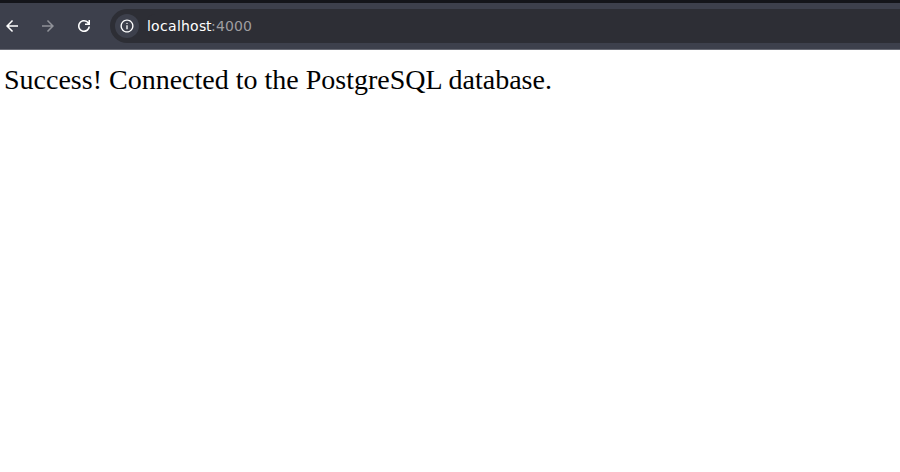
You've just built a fully-functional, multi-container application, complete with a persistent database and a web frontend, all orchestrated by one command. Happy Dockering!

I’ve been building for FreeDevTools.
A collection of UI/UX-focused tools crafted to simplify workflows, save time, and reduce friction in searching tools/materials.
Any feedback or contributions are welcome!
It’s online, open-source, and ready for anyone to use.
👉 Check it out: FreeDevTools
⭐ Star it on GitHub: freedevtools